

Now offering Palworld Game Servers!
Help
Register
Billing
Support
Sandbox Hosting
  • 0 Carrello
  • Home
  • Negozio
    • Sfoglia tutto
    • Registra un Nuovo Dominio
    • Trasferisci da noi un Nuovo Dominio
  • Comunicazioni
  • Archivio Domande
  • Stato del Network
  • Affiliati
  • Contattaci!
  • Altro
  • Account
    • Accedi
    • Registrati
    • Password dimenticata?
  1. Home
  2. Archivio Domande
  3. Sandbox Hosting
  4. Games
  5. Team Fortress 2
  6. Team Fortress 2 Guides

  Categorie

1
Sandbox Hosting

  Categorie

  Tag Cloud

Sandbox Hosting quickstart ark survival evolved ark ark se arma arma 3 Arma Reforger CS2 Counter-Strike 2 Rust Valheim Tf2 team fortress 2 update ARK Survival Ascended ascended map dlc Password admin Admin password Cheat ARK Palworld Palworld Server Connection Palworld Guide Palword Palworld password curseforge Curseforge Mods Mods Mods Installations Server Configurations ARK: Survival Ascended Hytale Quickstart Guide Server name Server password Abberation Expansion Map Abberation DLC Maps Map Change Astraeos Map Astraeos Expansion Map Switching to ARK: Survival Ascended Amissa Map Amissa DLC Extinction DLC Extinction DLC Map Extinction Map Forglar Map Forglar Ragnarok DLC Ragnarok Map Ragnarok

  Assistenza

  I miei ticket   Comunicazioni   Archivio Domande   Download   Stato del Network   Apri Ticket

Team Fortress 2 Guides Stampa

  • Tf2, team fortress 2, quickstart
  • 0

CS Valheim Logo

This guide will show you how to join and edit your Team Fortress 2 server.

Click here to order your own Team Fortress 2 server with SBoxHost


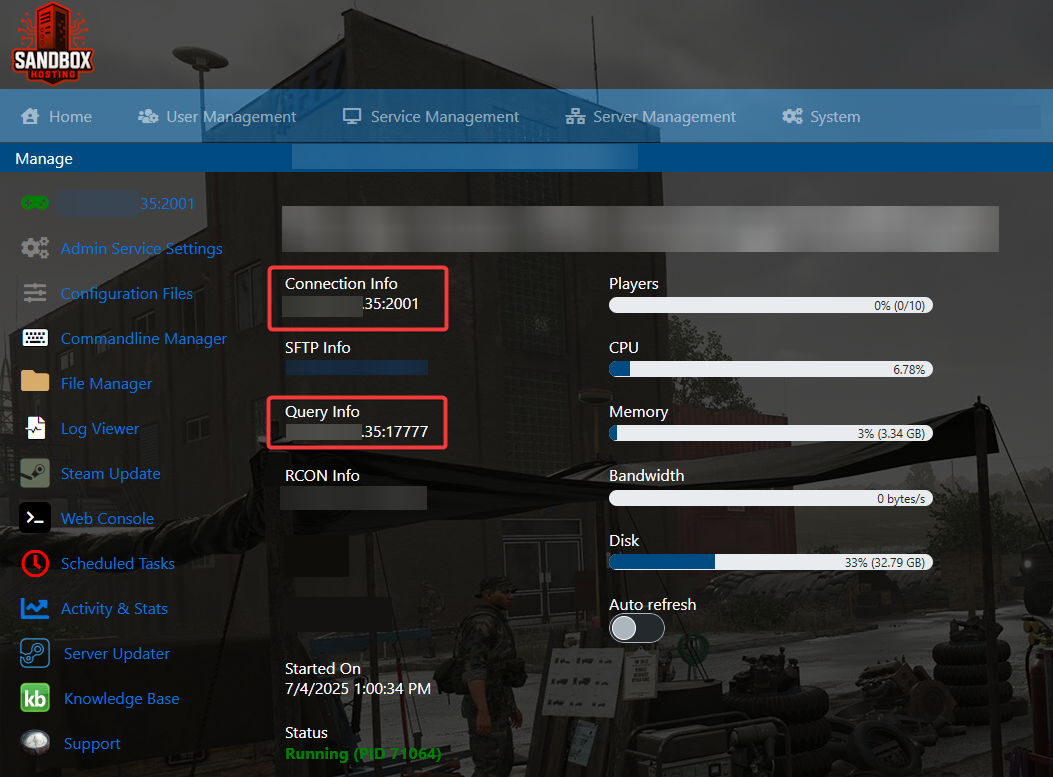
Open and log in to your SBoxHosting Control Panel.

Copy the Connection Info or Query Info IP/Port listed.


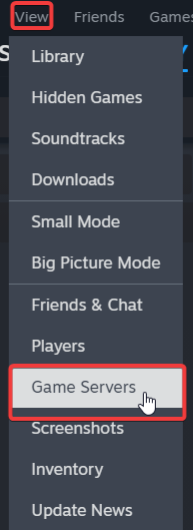
Open Steam. Click the View tab, then click Game Servers.


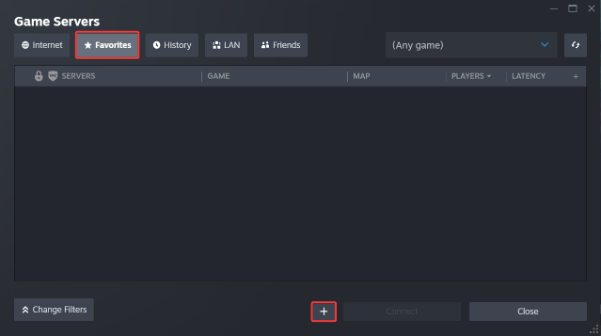
Click on the Favourites tab, then click the "+" icon and then Add Server.


Paste in your server's Connection Info or Query Info IP/Port.
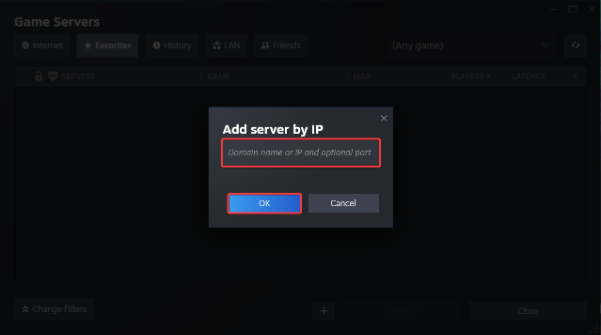


Click Connect.
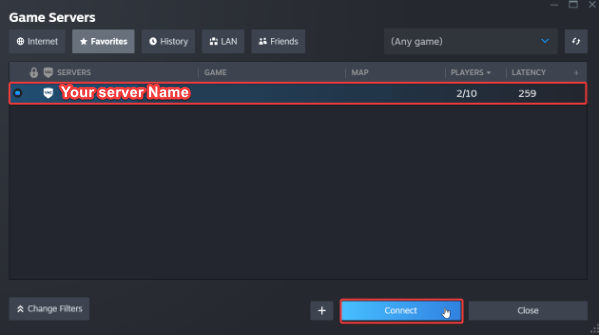


You can also use the Connection Info to Directly connect
via the games In-Game server browser or Launcher.

To edit server settings, follow these steps:

Log in to your SBoxHosting Control Panel.

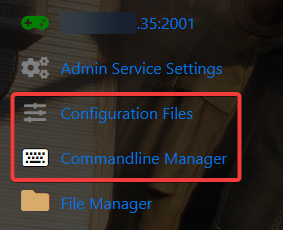
Open the Configuration Files and Commandline Manager.


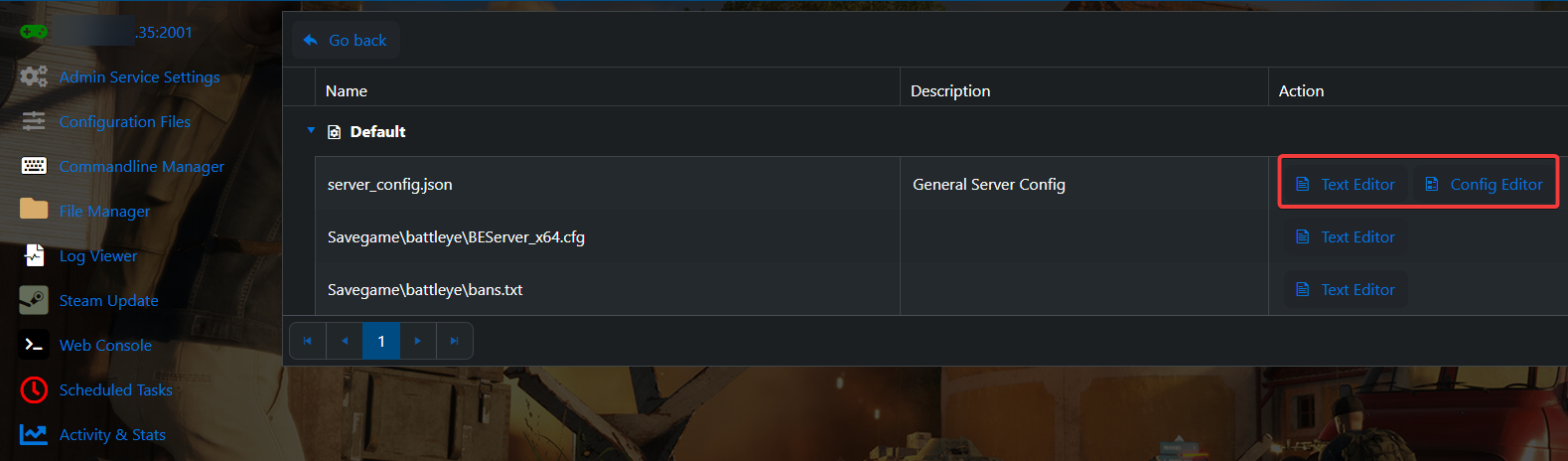
For the Configuration Files, select the “Config Editor” Button.
A pop-up will appear with settings you can change easily like Server Name and Password.
You can also use “Text Editor” to change the configuration contents directly.


For the Commandline Manager, select what commandline you want activated.
There is usually a default line and a modded line for our Control Panels.

Press modify on the one you want and edit the available settings like Server Name and Password.
There are also options to edit the mods and configs to load on the Command Line.
Once you have finished editing, hit apply at the bottom when done.


Did the above information not work for you?
Please click here to contact our support via a ticket.


Hai trovato utile questa risposta?

« Indietro

  Tag Cloud

Sandbox Hosting quickstart ark survival evolved ark ark se arma arma 3 Arma Reforger CS2 Counter-Strike 2 Rust Valheim Tf2 team fortress 2 update ARK Survival Ascended ascended map dlc Password admin Admin password Cheat ARK Palworld Palworld Server Connection Palworld Guide Palword Palworld password curseforge Curseforge Mods Mods Mods Installations Server Configurations ARK: Survival Ascended Hytale Quickstart Guide Server name Server password Abberation Expansion Map Abberation DLC Maps Map Change Astraeos Map Astraeos Expansion Map Switching to ARK: Survival Ascended Amissa Map Amissa DLC Extinction DLC Extinction DLC Map Extinction Map Forglar Map Forglar Ragnarok DLC Ragnarok Map Ragnarok

  Assistenza

  I miei ticket   Comunicazioni   Archivio Domande   Download   Stato del Network   Apri Ticket

Caricamento...
Caricamento...
Scegli lingua
العربية
Azerbaijani
Català
中文
Hrvatski
Čeština
Dansk
Nederlands
English
Estonian
Persian
Français
Deutsch
עברית
Magyar
Italiano
Macedonian
Norwegian
Português
Português
Română
Русский
Español
Svenska
Türkçe
Українська

Scegli la valuta

£ GBP
$ USD
€ EUR

Generate Password

Please enter a number between 8 and 64 for the password length

SboxHost Delivering top-tier high performance Game Servers at budget-friendly prices. We continuously refine our services to ensure maximum value while maintaining uncompromising quality.

Product
  • Web Hosting
  • Game Servers
  • Budget Servers
  • Dedicated Servers
Popular Game Hosting
  • Ark Survival Evolved
  • DayZ Standalone
  • ArmA Reforger
  • Rust
Company
  • About Us
  • Careers
  • Privacy Policy
  • Terms & Conditions
  • Copyright 2025 - SBoxHost All Rights Reserved.