

Now offering Palworld Game Servers!
Help
Register
Billing
Support
Sandbox Hosting
  • 0 Shopping Cart
  • Home
  • Store
    • Browse All
    • Register a New Domain
    • Transfer Domains to Us
  • Announcements
  • Knowledgebase
  • Network Status
  • Affiliates
  • Contact Us
  • More
  • Account
    • Login
    • Register
    • Forgot Password?
  1. Portal Home
  2. Knowledgebase
  3. Sandbox Hosting
  4. Games
  5. ARK: Survival Ascended
  6. How to Change your Map to Amissa on your ARK Survival Ascended Server

  Categories

1
Sandbox Hosting

  Categories

  Tag Cloud

Sandbox Hosting quickstart ark survival evolved ark ark se arma arma 3 Arma Reforger CS2 Counter-Strike 2 Rust Valheim Tf2 team fortress 2 update ARK Survival Ascended ascended map dlc Password admin Admin password Cheat ARK Palworld Palworld Server Connection Palworld Guide Palword Palworld password curseforge Curseforge Mods Mods Mods Installations Server Configurations ARK: Survival Ascended Hytale Quickstart Guide Server name Server password Abberation Expansion Map Abberation DLC Maps Map Change Astraeos Map Astraeos Expansion Map Switching to ARK: Survival Ascended Amissa Map Amissa DLC Extinction DLC Extinction DLC Map Extinction Map Forglar Map Forglar Ragnarok DLC Ragnarok Map Ragnarok

  Support

  My Support Tickets   Announcements   Knowledgebase   Downloads   Network Status   Open Ticket

How to Change your Map to Amissa on your ARK Survival Ascended Server Print

  • Amissa Map, Amissa DLC, Server Configurations, Maps, Map Change, Switching to ARK: Survival Ascended
  • 0

This guide will help you learn how to change your Map to Amissa on your ARK Survival Ascended Server.


Running your own ARK: Survival Ascended server gives you the freedom to explore new worlds, customize gameplay, and keep your community engaged. One of the most exciting ways to refresh your server experience is by switching to a custom map. Amissa is a popular fan-made map that offers unique biomes, breathtaking landscapes, and challenging environments that go beyond the official ARK maps. In this guide, we’ll walk you through the process of changing your server’s map to Amissa. Whether you’re hosting privately for friends or managing a larger community, the steps are straightforward once you know where to look. By the end, your server will be running Amissa, ready for exploration and adventure.


Changing your Map to Amissa on your ARK Survival Ascended Server


1. Log in to your Game Control Panel and navigate to your service.

2. Before making any modifications, stop the server from running by clicking the Stop button.

 

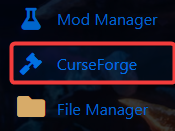
3. Navigate to Curseforge Tab.
 

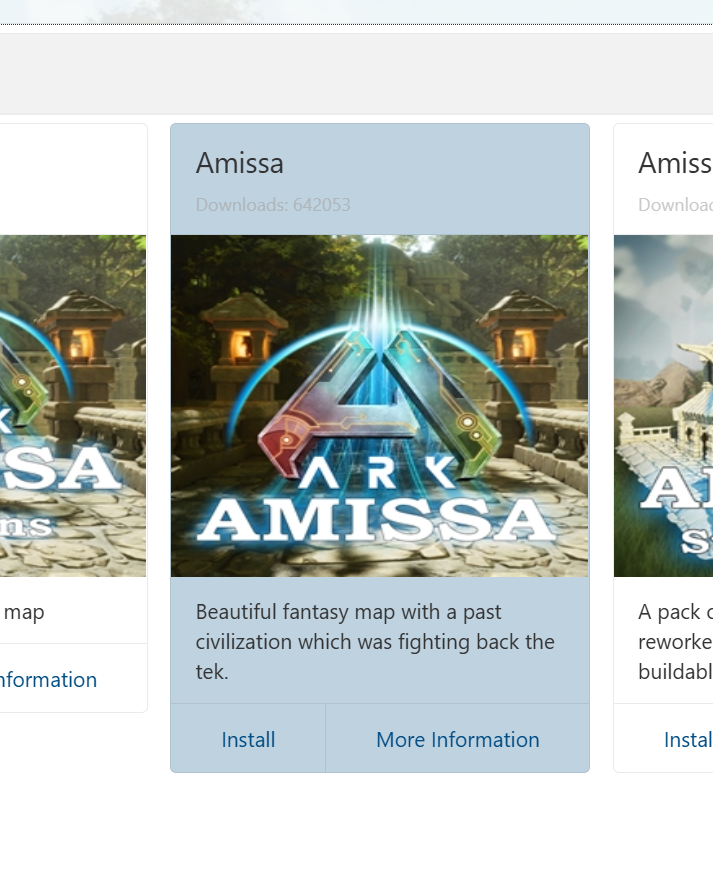
4. On the Curseforge, search for the Amissa Map and install it.
 

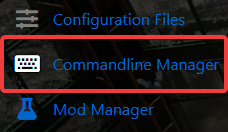
5. Next is navigate to the Commandline Manager Tab.
 

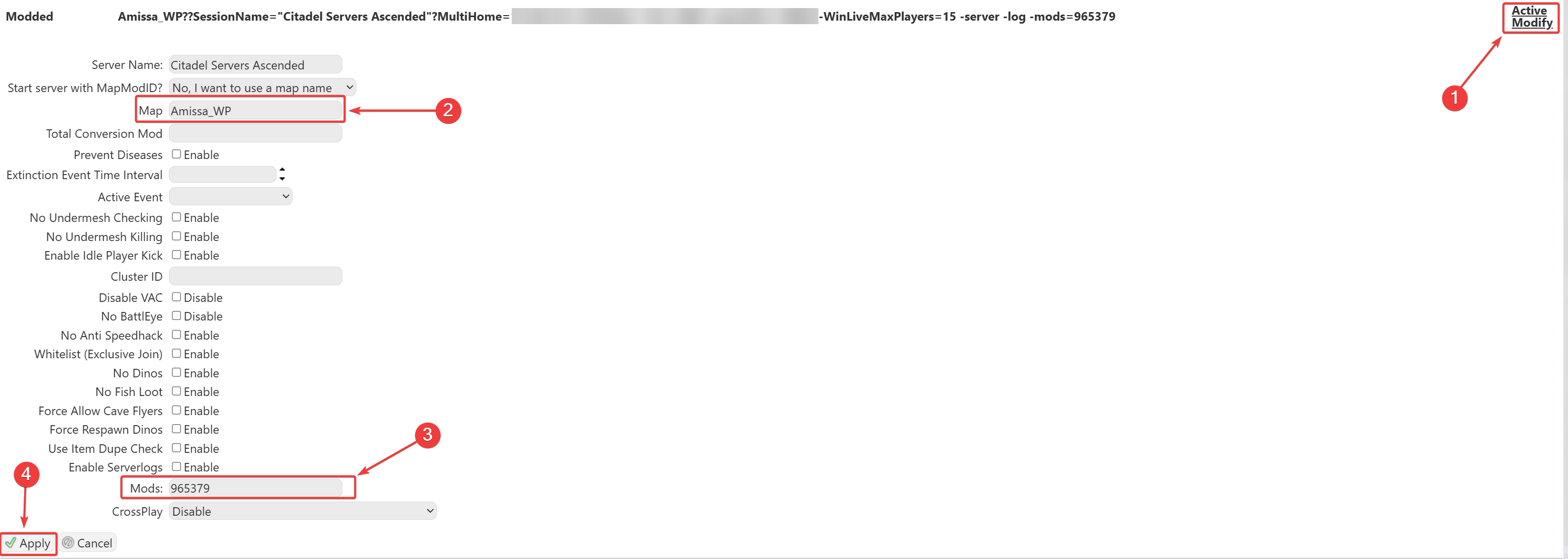
6. On the Commandline Manager, click Modify on the Modded option. In the Map section, enter: 


Amissa_WP.


7. Make sure the Mod ID for Amissa is added to your mod list to ensure the map loads properly.

Mod ID - 965379
 

8. Once everything is set up and the server is started, you’ll be able to find your server in the in-game server list.

Note: We support all official maps of the game for ARK: Ascended. "_WP" needs to be added at the end for the maps to work.
Please make sure to follow proper capitalization as they are case-sensitive. 



Click here to contact our support team for further help.

Was this answer helpful?

Related Articles

How to Update your Ark Ascended Server Keeping your ARK: Survival Ascended server up-to-date ensures stability, new features, and... How to Change the Map on Your ARK: Survival Ascended Server Need to switch maps on your ARK: Survival Ascended server? Here's a quick and easy guide to... How to Update the Server Name and Password on Your ARK: Survival Ascended Server Want to customize your server name or add a password for private access? This guide shows you... How to Enable and Use Cheats in ARK: Survival Ascended Cheats let you perform powerful admin actions like spawning items, teleporting, and toggling... ARK: Survival Ascended Quickstart Guide Want to jump into your ARK server quickly? Here’s a simple step-by-step to connect using your...
« Back

  Tag Cloud

Sandbox Hosting quickstart ark survival evolved ark ark se arma arma 3 Arma Reforger CS2 Counter-Strike 2 Rust Valheim Tf2 team fortress 2 update ARK Survival Ascended ascended map dlc Password admin Admin password Cheat ARK Palworld Palworld Server Connection Palworld Guide Palword Palworld password curseforge Curseforge Mods Mods Mods Installations Server Configurations ARK: Survival Ascended Hytale Quickstart Guide Server name Server password Abberation Expansion Map Abberation DLC Maps Map Change Astraeos Map Astraeos Expansion Map Switching to ARK: Survival Ascended Amissa Map Amissa DLC Extinction DLC Extinction DLC Map Extinction Map Forglar Map Forglar Ragnarok DLC Ragnarok Map Ragnarok

  Support

  My Support Tickets   Announcements   Knowledgebase   Downloads   Network Status   Open Ticket

Loading...
Loading...
Choose language
العربية
Azerbaijani
Català
中文
Hrvatski
Čeština
Dansk
Nederlands
English
Estonian
Persian
Français
Deutsch
עברית
Magyar
Italiano
Macedonian
Norwegian
Português
Português
Română
Русский
Español
Svenska
Türkçe
Українська

Choose Currency

£ GBP
$ USD
€ EUR

Generate Password

Please enter a number between 8 and 64 for the password length

SboxHost Delivering top-tier high performance Game Servers at budget-friendly prices. We continuously refine our services to ensure maximum value while maintaining uncompromising quality.

Product
  • Web Hosting
  • Game Servers
  • Budget Servers
  • Dedicated Servers
Popular Game Hosting
  • Ark Survival Evolved
  • DayZ Standalone
  • ArmA Reforger
  • Rust
Company
  • About Us
  • Careers
  • Privacy Policy
  • Terms & Conditions
  • Copyright 2025 - SBoxHost All Rights Reserved.