

This guide will help you learn how to change your Map to Forglar on your ARK Survival Ascended Server.
One of the best parts of hosting your own ARK: Survival Ascended server is the ability to customize the adventure for you and your community. If you’re looking for a fresh challenge, Forglar is a custom map that offers unique biomes, hidden secrets, and a whole new environment to explore beyond the official ARK worlds. Switching your server’s map to Forglar isn’t difficult, but it does require a few specific steps to make sure everything runs smoothly. In this guide, we’ll walk you through the process of updating your server settings so you can launch into Forglar without any hassle. By the end, you’ll be ready to dive into its landscapes, tame creatures in new territories, and enjoy a brand‑new survival experience with your friends.
Changing your Map to Forglar on your ARK Survival Ascended Server
1. Log in to your Game Control Panel and navigate to your service.
2. Before making any modifications, stop the server from running by clicking the Stop button.

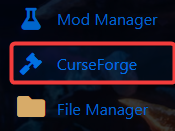
3. Navigate to Curseforge Tab.
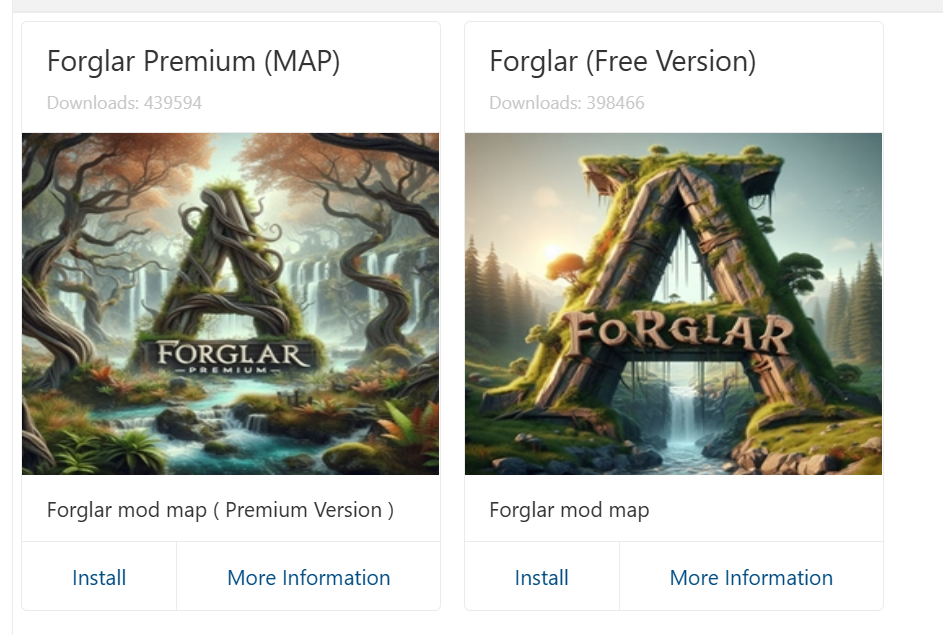
4. On the Curseforge, there are two versions of the Forglar map:
Forglar – Free Version
Forglar Premium – a premium version with additional features.
Install the one that you prefer.
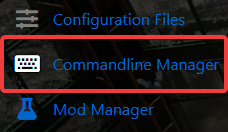
5. Next is navigate to Commandline Manager Tab.
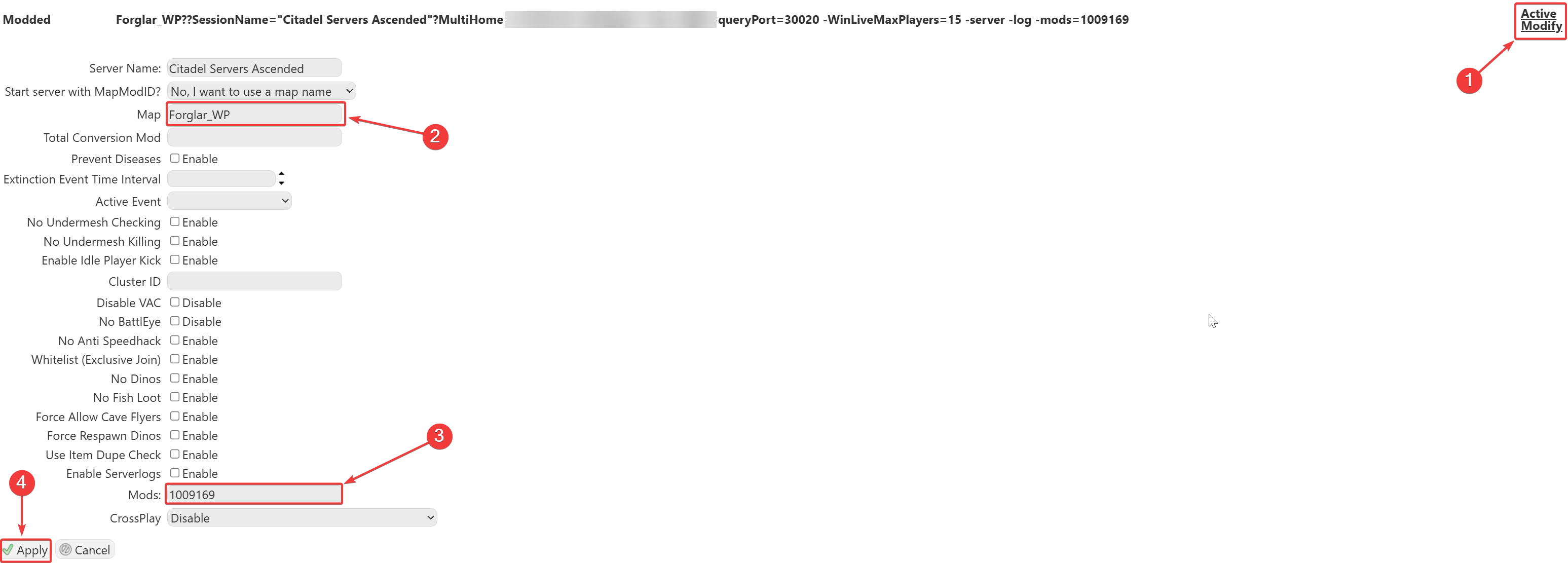
6. On the Commandline Manager, click Modify on the Modded option. In the Map section, enter:
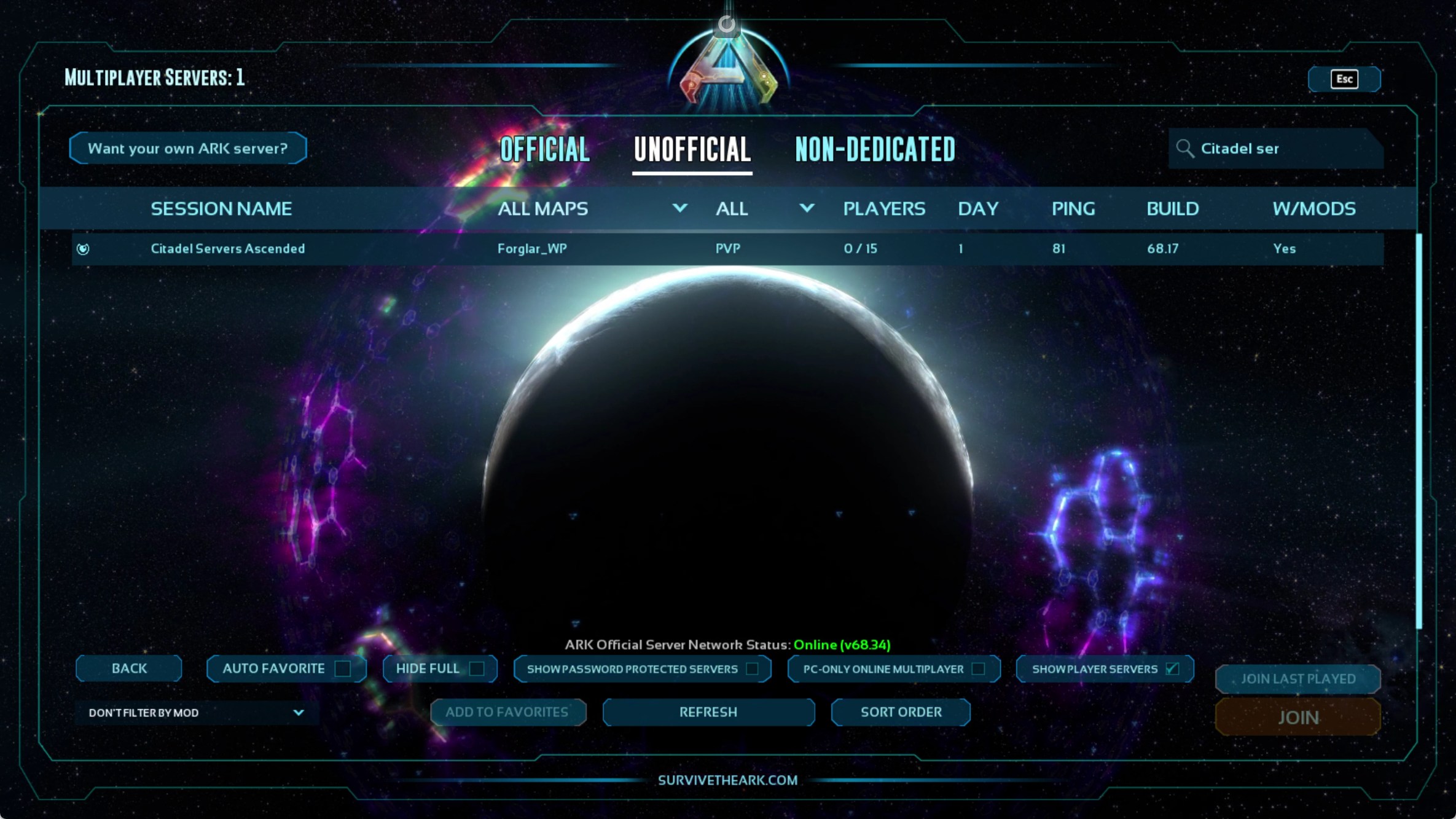
Forglar_WP.
7. Make sure the Mod ID for Florglar is added to your mod list to ensure the map loads properly.
Standard Version - 935835
Premium Version - 1009169
8. Once everything is set up and the server is started, you’ll be able to find your server in the in-game server list.
Note: We support all official maps of the game for ARK: Ascended. "_WP" needs to be added at the end for the maps to work.
Please make sure to follow proper capitalization as they are case-sensitive.